Transient menu
Pressing C-c ? opens the transient menu (built using transient, the same menu library used by Magit). It provides discoverable access to every command in ecc.
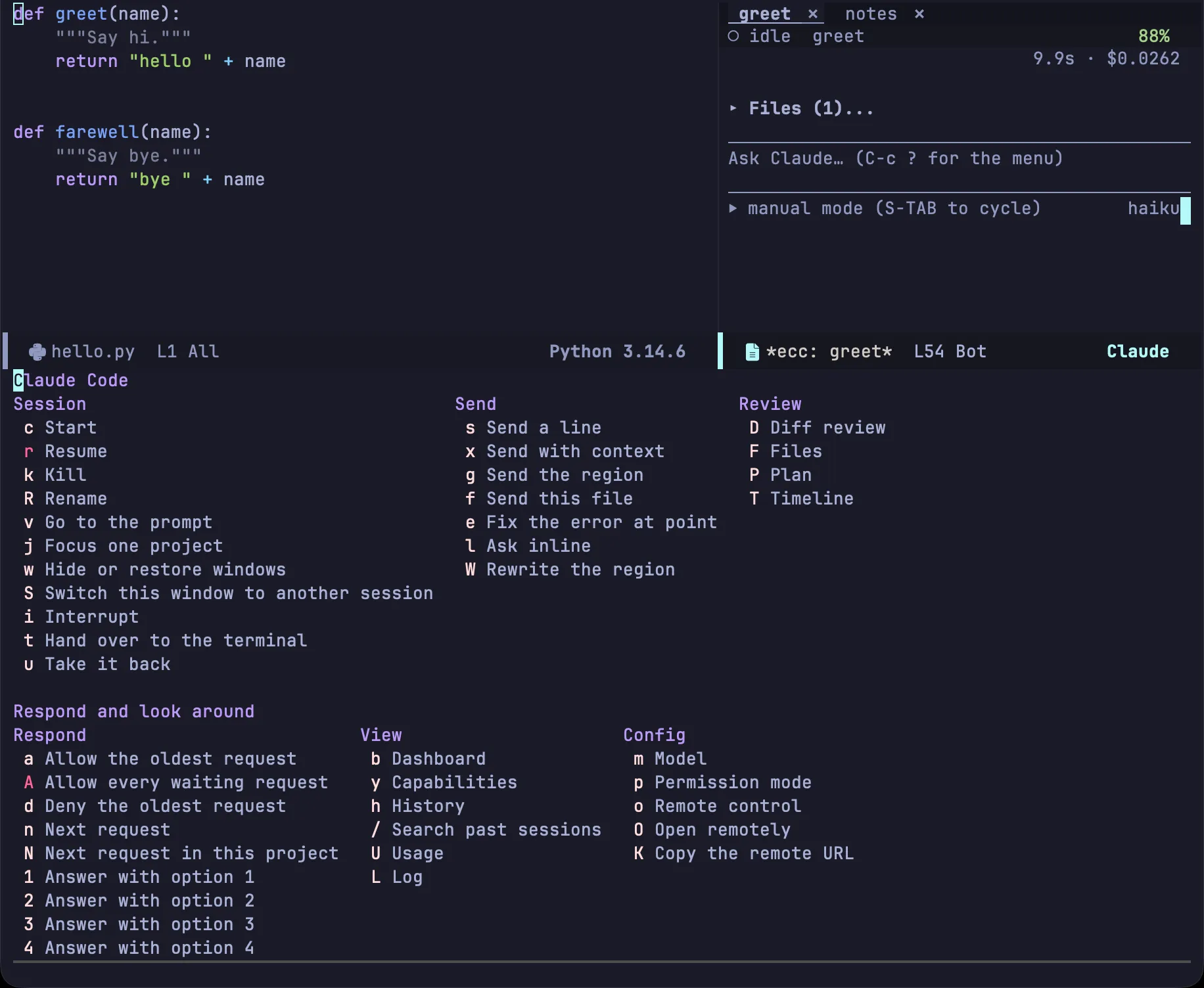
Each line displays a key and its command; press C-g to close the menu. Prefix switches (lines starting with -) toggle options for subsequent commands.
Outside session buffers, open the menu via M-x ecc-menu or ? in ecc-global-map (see Global key bindings). Keys have identical meanings in both contexts.
Session
Section titled “Session”c — Start
Section titled “c — Start”Starts a session in the current buffer’s project, named after that directory. Starting another session in the same project prompts for a name; C-u c prompts for both directory and name.
r — Resume
Section titled “r — Resume”Lists conversations available to resume.
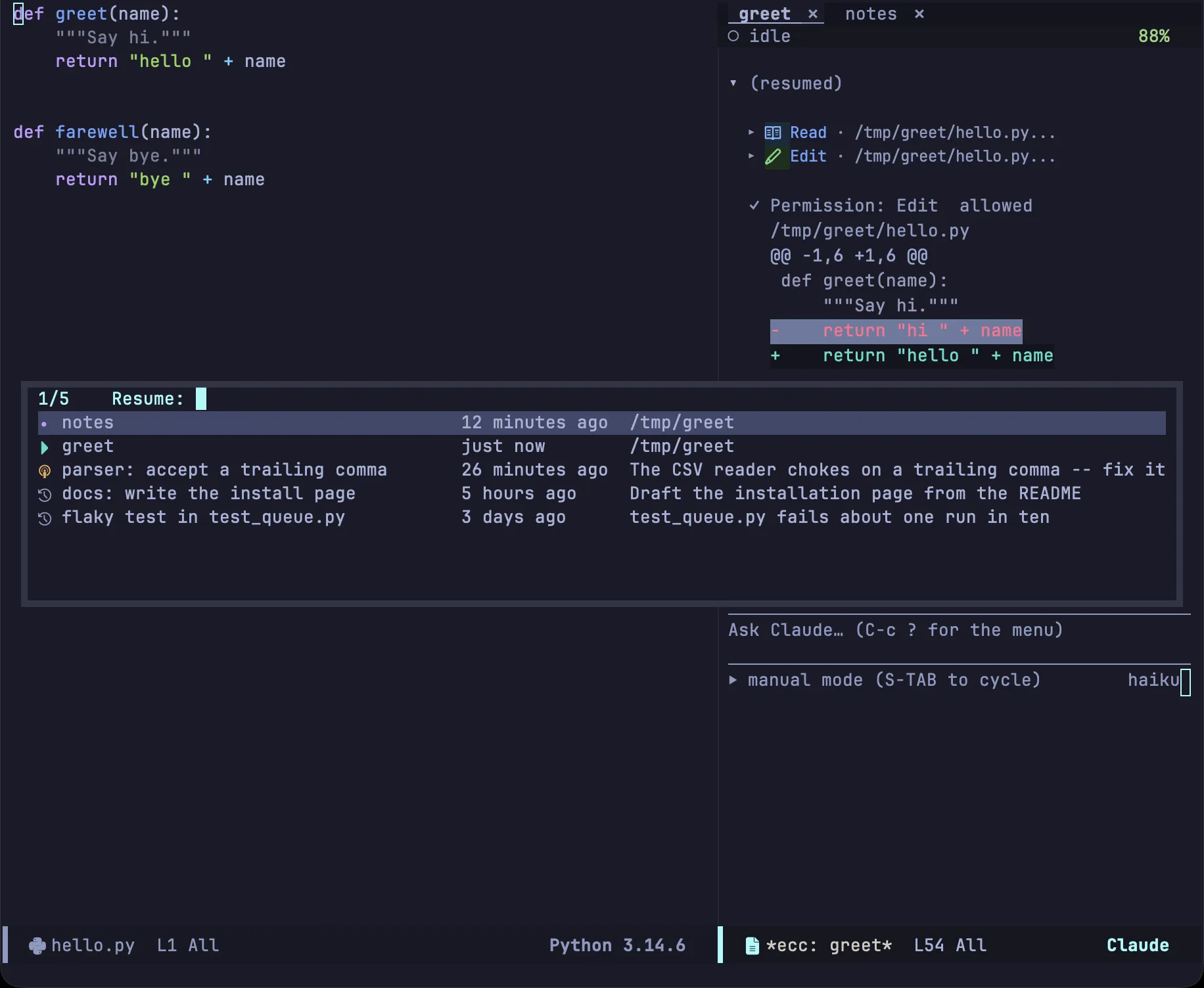
| Icon | State |
|---|---|
| ▶ | Active session running in this Emacs instance |
| ● | Terminated session buffer in this Emacs instance |
| ◉ | Active conversation running in another process |
| ↺ | Recorded conversation on disk |
Each entry shows its name, last active time, and directory (or initial prompt for recordings). Use the -f switch to branch a new conversation from the selected one instead of continuing it.
k — Kill
Section titled “k — Kill”Stops the process and kills the session’s buffers. The recording remains on disk so r can still resume it later.
R — Rename
Section titled “R — Rename”Renames the session and its buffers. The new name updates across tabs, the mode line, and selection menus.
v — Focus prompt
Section titled “v — Focus prompt”Displays the session window and moves point to the prompt input area.
j — Focus one project
Section titled “j — Focus one project”Focuses the whole frame on one project. Pick a project with sessions: every other project’s session windows come off the screen, this project’s sessions are dealt into the window roles, and the main window switches to its source. C-u j asks which buffer the main window should show. Nothing is killed, and w and C-u w bring the hidden sessions back. See Focusing one project.
w — Toggle windows
Section titled “w — Toggle windows”Hides or restores session windows for the current project, leaving other projects as they are. C-u w toggles session windows across all projects, which undoes a focus. Background sessions continue running while hidden.
S — Switch session in window
Section titled “S — Switch session in window”Session windows feature tabs for each active session. S switches the current window to display another session in place.

Inside session buffers, C-c C-t performs the same action.
i — Interrupt
Section titled “i — Interrupt”Interrupts the running turn while preserving work completed so far.
t — Hand over to terminal
Section titled “t — Hand over to terminal”Hands off the conversation to ghostel, which renders the CLI’s native interface inside an Emacs buffer.

The turn is interrupted and the Emacs process is stopped before the terminal resumes the session to prevent branching history. The transcript continues tracking terminal activity while active.
u — Reclaim session
Section titled “u — Reclaim session”Imports new exchanges from the terminal session and resumes it headless in Emacs. If the terminal is still running, the session remains there and returns automatically when the terminal exits.
These commands are intended to be run from source code buffers, sending context directly to the resolved session without interrupting active turns (subsequent prompts are queued).
s x g f — Sending from a buffer
Section titled “s x g f — Sending from a buffer”| Key | Description |
|---|---|
s |
Send a single line typed in the minibuffer |
x |
Send a line along with current file and line position |
g |
Send the active region (or entire buffer if unselected) in a quoted block |
f |
Send the file path as an @path reference for the CLI to read |

Context appended by x and g appears in a formatted block:
---Current context: hello.py L1-L3```pythondef greet(name): return "hello " + name```A prefix argument prompts for an instruction to prepend to the code (C-u g), or prompts for the target session (C-u s). f offers to save the buffer first, ensuring the CLI reads the latest changes from disk.

e — Fix error at point
Section titled “e — Fix error at point”Sends diagnostics on the current line alongside surrounding context code. Queries Flymake first, then Flycheck, and finally any overlay help text at point.
l — Ask inline
Section titled “l — Ask inline”Asks a question about the region or file and displays the response in an overlay directly above point rather than in the transcript. Press n and p to scroll, r to ask a follow-up, and q to dismiss.

The question runs in a dedicated lightweight or forked session (selected once and remembered per buffer).
W — Rewrite region
Section titled “W — Rewrite region”Rewrites selected code according to an instruction. The proposed replacement is shown in place, and changes are applied to the buffer only after confirmation with RET.

This is a single-shot operation without tool access: the CLI provides replacement code and Emacs updates the buffer directly.
Review
Section titled “Review”D opens all modifications made during the session as a unified diff. F and P navigate to the Files and Plan sections, and T jumps to a specific turn.
See Review and plan mode.
Respond
Section titled “Respond”a and d allow or deny the oldest pending request, A allows all pending requests, n and N jump to next waiting sessions, and 1–4 select question options.
b — Dashboard
Section titled “b — Dashboard”View all active sessions in a single overview. See Session management.
y — Capabilities
Section titled “y — Capabilities”Inspect active skills, subagents, slash commands, MCP servers, and plugins. See Other features.
h — History
Section titled “h — History”Open a past conversation recorded under ~/.claude/projects in a standard session buffer. Past conversations can be inspected read-only, or resumed with r.
/ — Search
Section titled “/ — Search”Search past conversations in the current project by prompt and response text, and jump directly to matching sessions. See Session management.
U — Usage
Section titled “U — Usage”Check current plan usage and rate limits. See Other features.
L — Log
Section titled “L — Log”View raw JSON protocol logs with timestamps (<< for incoming messages, >> for outgoing). This is the primary diagnostic buffer for troubleshooting and bug reports.
Config
Section titled “Config”m — Model
Section titled “m — Model”Change the active model for the running session without restarting.
p — Permission mode
Section titled “p — Permission mode”Switch the permission mode for the running session. (In session buffers, press S-TAB to cycle modes directly).
o O K — Remote Control
Section titled “o O K — Remote Control”o toggles Remote Control for this session, allowing it to be driven from the Claude web or desktop app. O opens the session in your browser at claude.ai/code, and K copies that URL to the kill ring. Both require the session to be connected to the bridge.
All configuration variables can be customized via M-x customize-group RET ecc or viewed in the configuration reference.